

 Back
BackWhy Perfectly Built Models Can Still Look Wrong in Motion, and How To Fix It
Making a 3D model animation-ready is an art in itself.
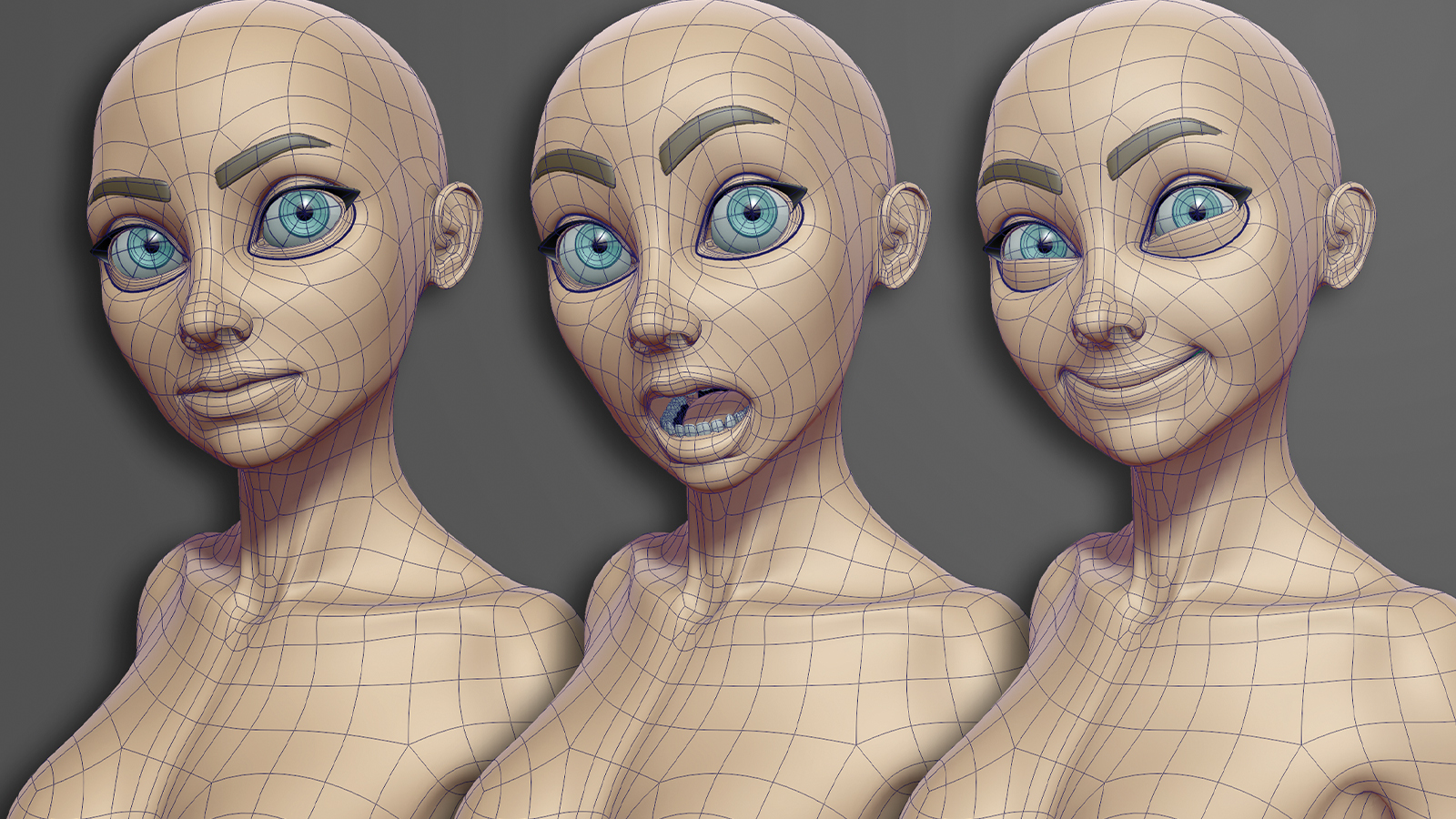
By now, you should be comfortable with building a model and have a good grasp of terminology like vertex normals, UVs, and topology, regardless of the best 3D modelling software you’re using. In this section, we will look at how to make your model ready for animation as we explore what is needed to help it move and deform in a more natural way when posed.
A basic grid-style layout of your edge loops simply won’t work. As your model bends and twists, these edges dictate how the surface will look, and an incorrect layout will result in pinching, creasing, and stretching, which will ultimately make the model look unnatural as it moves. Even when working on powerful machines, including some of the best laptops for 3D modelling, poor topology will still break the illusion the moment you start animating.
Instead, a good knowledge of how edges should flow and where it is best to add extra geometry is essential. So over the next few stages we will look at a few key areas to keep in mind as you prepare your character to act and emote. And don’t worry, in the next issue we will begin to look at model deformation, which will tie into the following steps nicely, and give you a quick way to test how your model deforms.
01. Match muscle lines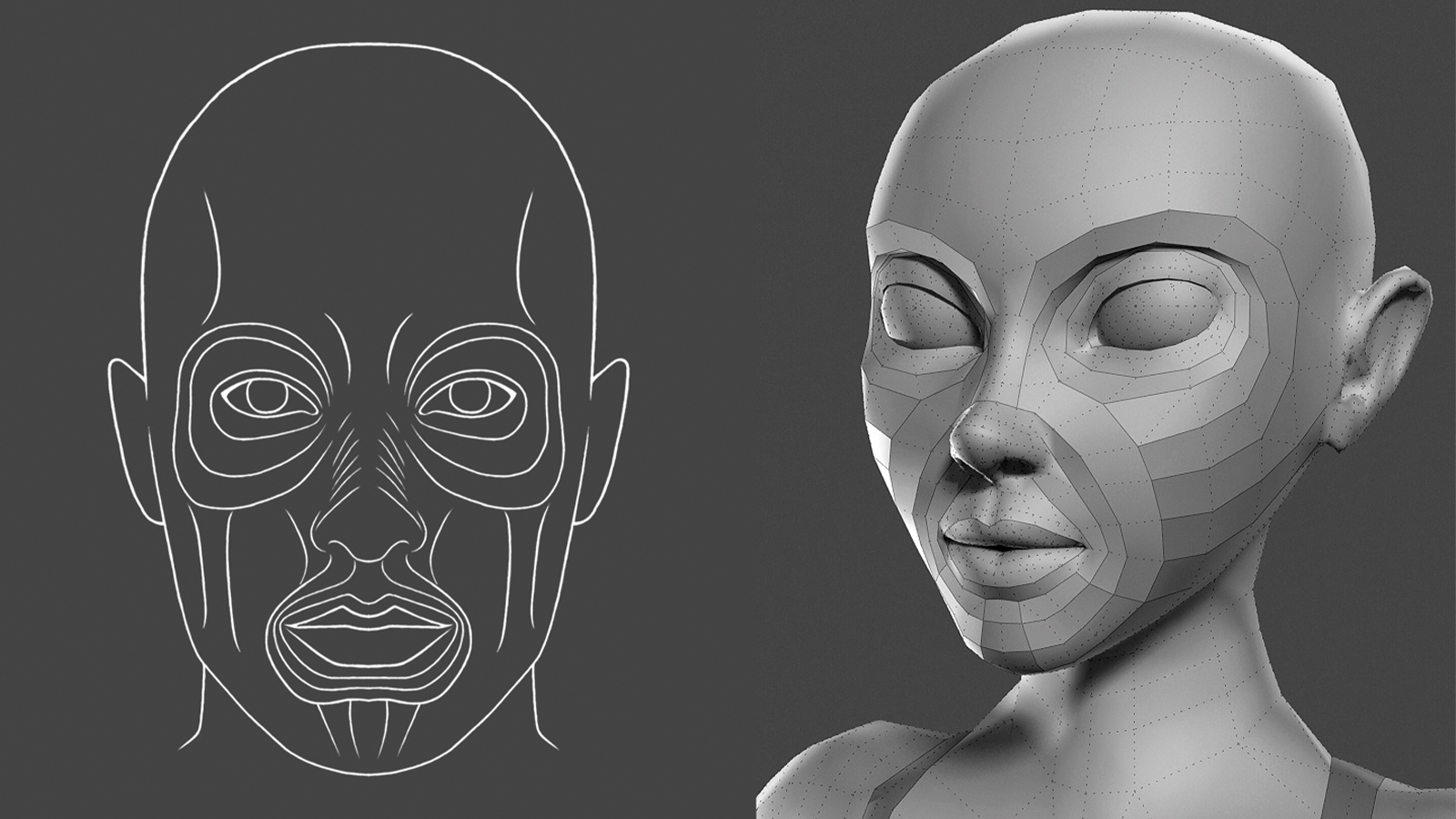
When reworking your topology, the first step is to adjust the edge flow to mimic natural muscle lines. This can be tricky, but taking the time to do so will ensure your model deforms more naturally.
02. Update bending areas
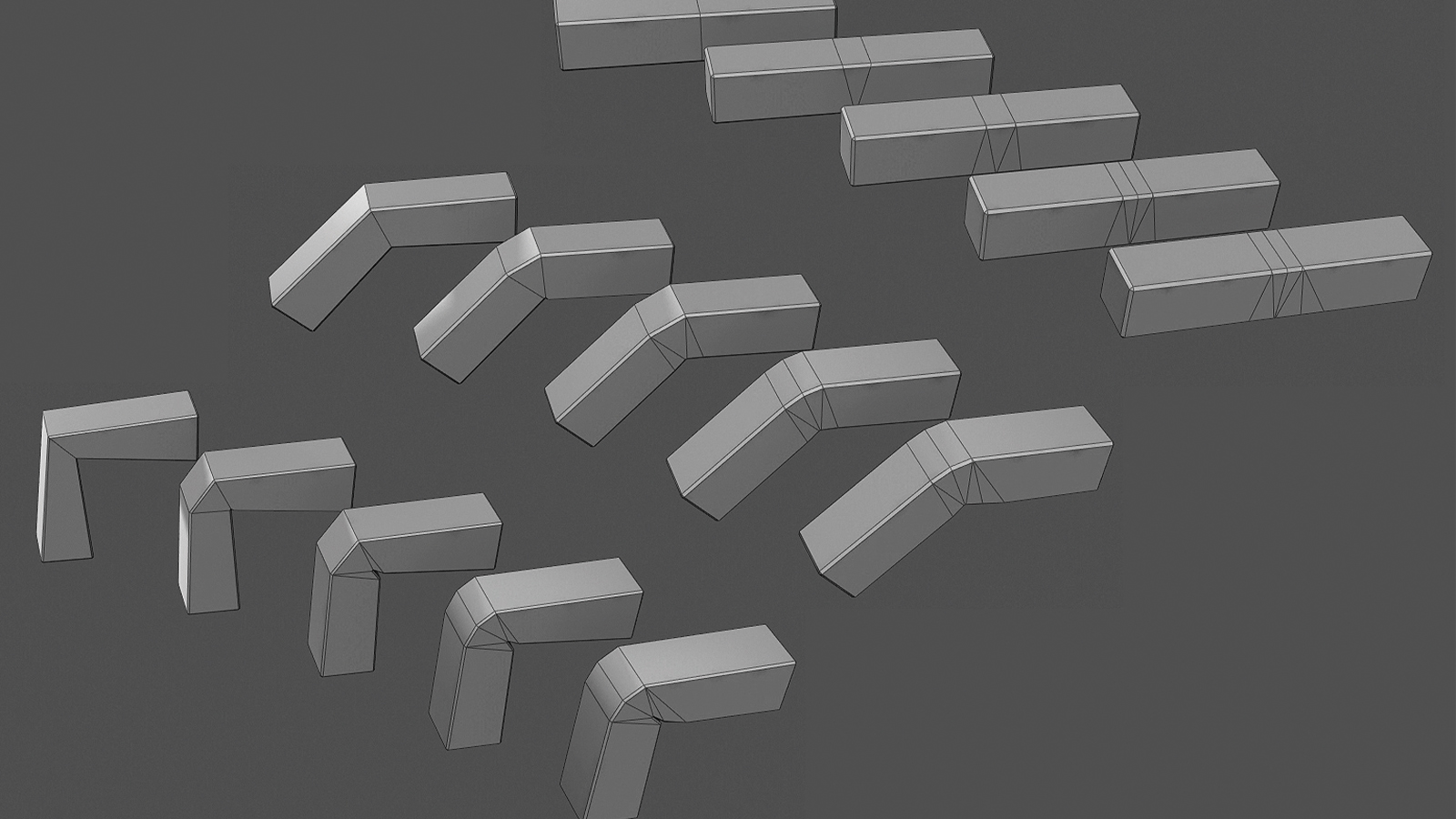
Next, check the areas that bend or twist to ensure there is enough geometry to make the deformation smooth rather than jagged. This doesn’t need to involve lots of new edge loops. In fact, you can successfully get a good bend with just a small number of polygons placed in the correct way.
03. Test poses
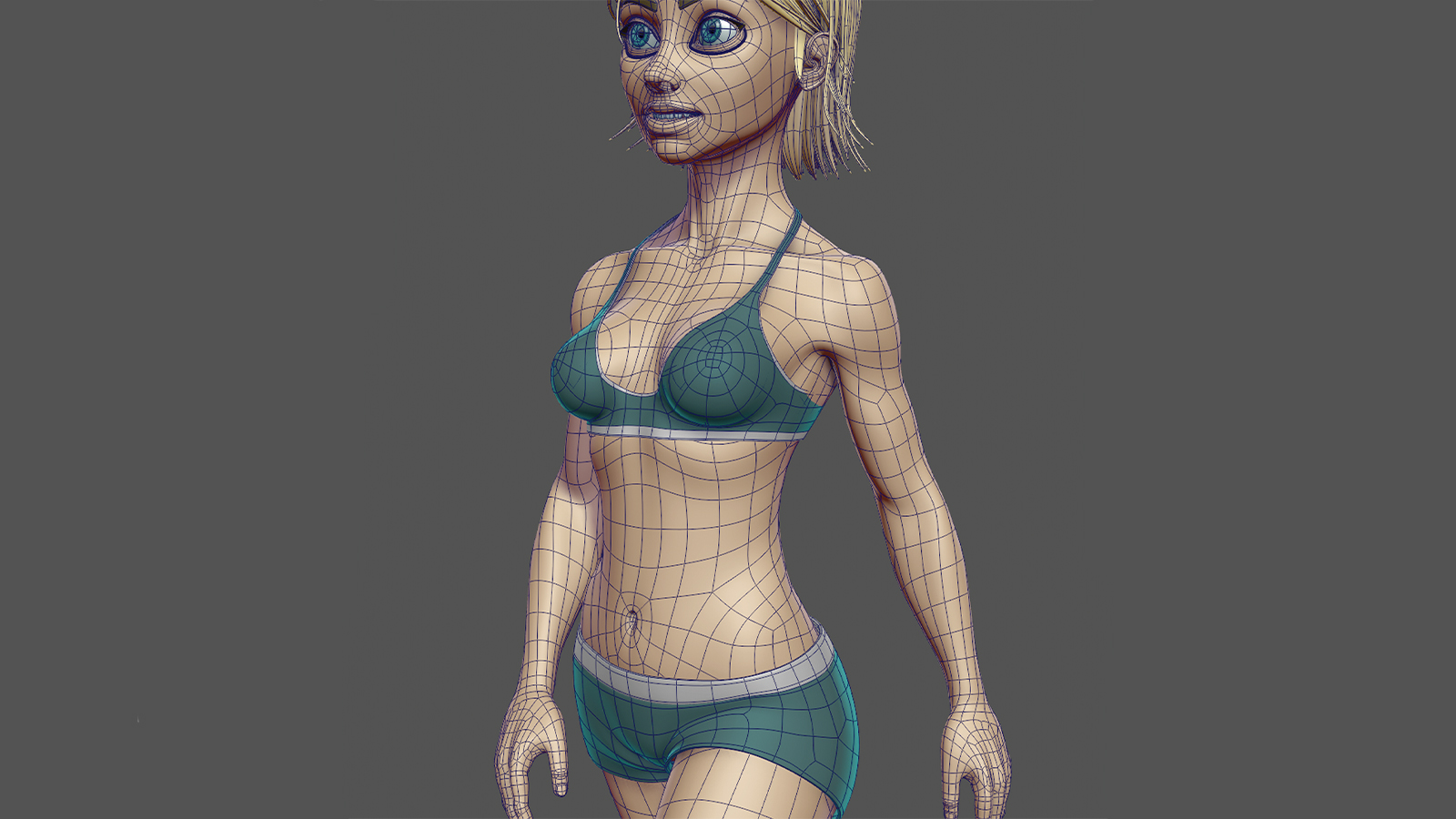
As a final step, check how your work holds up by temporarily deforming and posing it. This could simply be by moving or even sculpting the model, or you can quickly add joints, which will allow you to temporarily bend key areas.
Source: Creative Bloq